
Case file / E.12
Business Card Capture
An iPhone Shortcut that turns a Lock Screen tap into a structured note. Point your camera at a business card, and it lands in your Notes app with the date, a prompt for where you met, and the scanned card image inline.
Promo / 22 seconds
The Problem
Conferences hand you a stack of business cards. You take them home, they pile up on a desk, and every one of them decays into a forgotten first name written on a scrap of cardstock. Six weeks later you can't remember who half these people are or where you met them.
The cards were never the problem. Structured context around them is.
How I built it
I built this two days before flying to Hacker Summer Camp because I already knew what the next week would look like. Meet someone at a bar in Vegas, exchange cards, forget half of them by Sunday. I wanted the capture to happen in the moment, on the Lock Screen, without opening an app first.
The shortcut has three actions. A Text block seeds the note with a title, the meet-date, and a "Location you met:" prompt. A Create Note action drops that scaffold into a dedicated iCloud Notes folder called Business Cards. Then Start Scanning Document opens the camera in scan mode, snaps the card, embeds it in the note, and offers to scan another. One tap on the Lock Screen widget kicks off the whole chain.
Install it in four steps
Requires an iPhone on iOS 16 or later. Takes about three minutes.
-
Create the folder
Open the Notes app. Tap the back arrow in the top left until you reach the folders view. Tap the new-folder icon (bottom left). Name it Business Cards.
-
Download the shortcut
Tap the download button in the panel below. When the Shortcuts app opens the file, tap Add Shortcut.
-
Point the shortcut at your new folder
Open the Shortcuts app. Find Business Card Capture in your list, and tap the three dots in the top-right corner of its tile to open the shortcut editor.
You'll see three actions stacked vertically. Find the middle one, which reads Create note with [Text] in [Folder]. Tap the folder name inside that action, and choose Business Cards from the list. Tap Done in the top right.
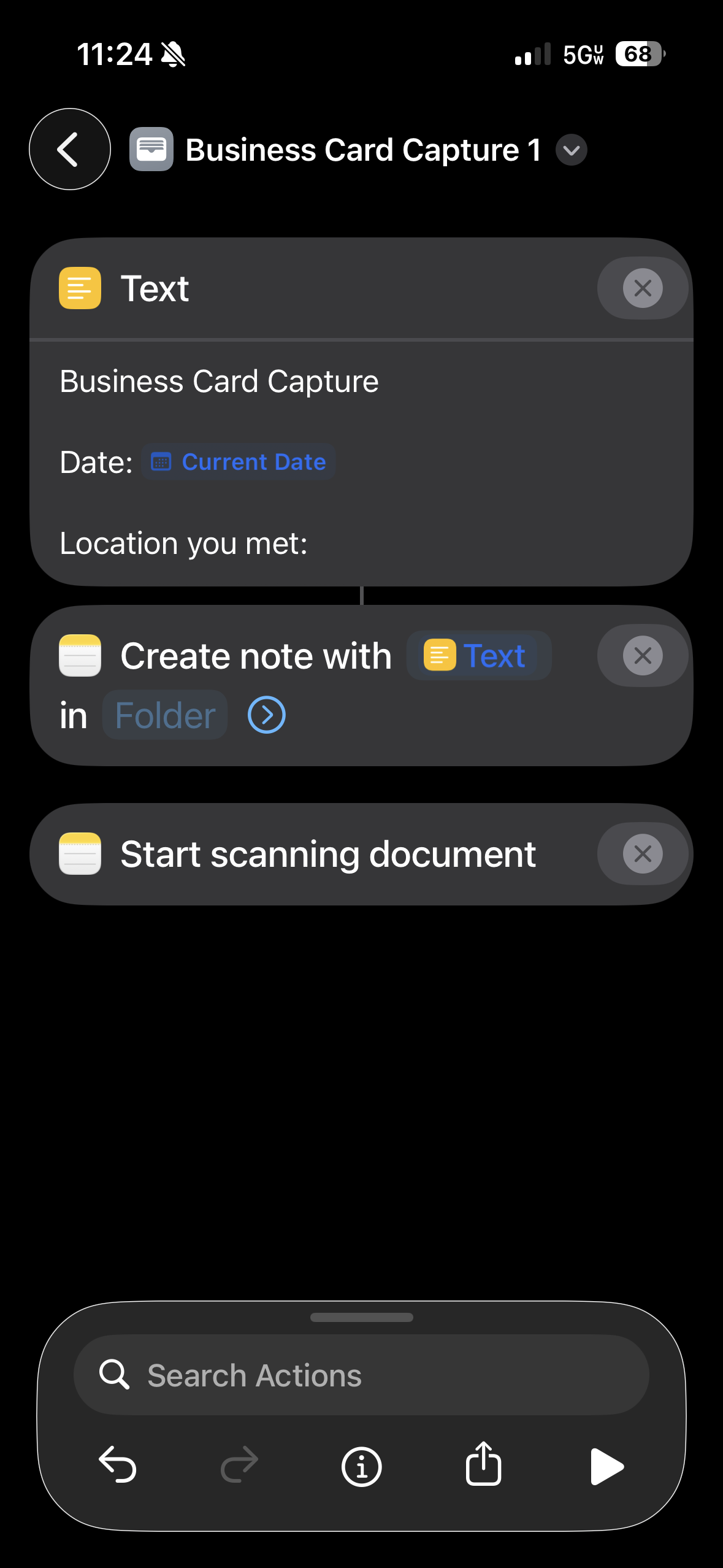
The three actions inside the shortcut editor -
Add it to your Lock Screen
Wake your iPhone but do not unlock it. Press and hold anywhere on the Lock Screen. Tap Customize at the bottom, then Lock Screen.
Tap the widget area directly below the clock. In the widget picker that opens, scroll to Shortcuts and tap it. Choose the small square Shortcut widget.
Before you tap Done, tap that newly-added widget one more time. A picker will appear. Choose Business Card Capture. Tap Done in the top right, and again on the next screen.
You're set. Any time you meet someone new, tap the widget from your Lock Screen. The card lands in your Business Cards folder with the date, a prompt for where you met, and the scanned card image inline.